Experience Settings
Experience Settings apply to your entire experience.
Opening Experience Settings
- To access the Experience Settings select Immersive Interactive > Experience Settings from the menu bar. This will open the Experience Settings Window.
- If no Experience Settings have been setup this Window will prompt you to Create Experience Settings.

- Once created, you will be able to edit Experience Settings from this Window.
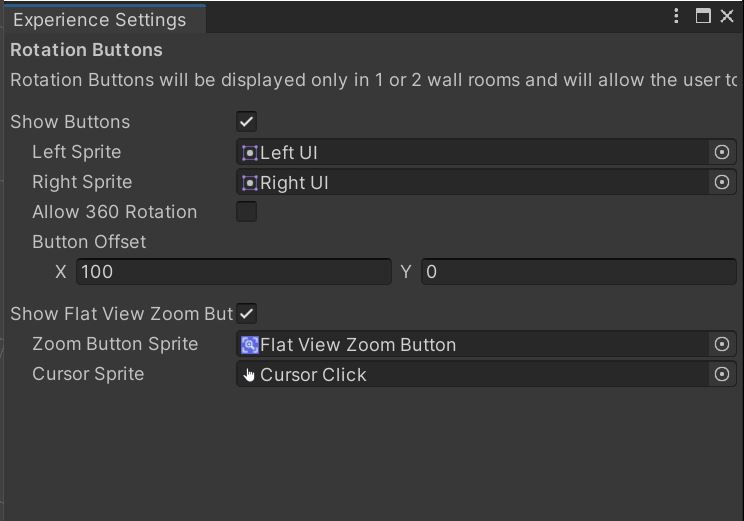
Rotation Buttons
Rotation Buttons will appear to allow users to Rotate the scene. Rotation Buttons are only visible under certain circumstances:
- There are fewer than 3 walls allowing users to view all the content by rotating the scene.
- Allow 360 Rotation is enabled. This gives users free reign to rotate the scene as they wish.
Rotation Button Settings
Show Buttons- Enable or disable Rotation Button entirely.
Left and Right Sprite- The Images displayed on each Rotation Button.
Allow 360 Rotation- If enabled and the Immersive Camera Manager Camera Type is 3D then users can rotate the scene around 360 degrees.
Button Offset- Adjust the offset from the centre edge of the surface that each button should appear.
Flat View Zoom Buttons
Flat View Zoom Buttons allow users to quickly zoom into a specific surface. These buttons are only visible if the Display Mode is Flat View.
Flat View Zoom Button Settings
Show Flat View Zoom Buttons- Enables or disalbe Flat View Zoom Buttons entirely.
Zoom Button Sprite- Image which should be displayed on the Zoom Button.
Cursor Sprite- Image which should be used by the Cursor whenever the user hovers over a Zoom Buttons.