Post Processing
The Immersive Unity SDK supports Unity's Post Processing Stack v2. The following instructions assume that you have the installed the Post Processing Package from the Unity Registry within the Unity Package Manager.
Setup
- Create a new Empty GameObject in your Scene.
- Add A Post-process Volume Component.
- In most cases you will want to set Is Global to true unless you plan on moving the Immersive Camera System at play time.
- Setup your the Volume with the effects that you want as per Unity's documentation.
- Select Immersive Manager.
- At the bottom in the Add Camera Configurators seciton select the dropdown and click "SetupImmersiveCameraPostProcessing".
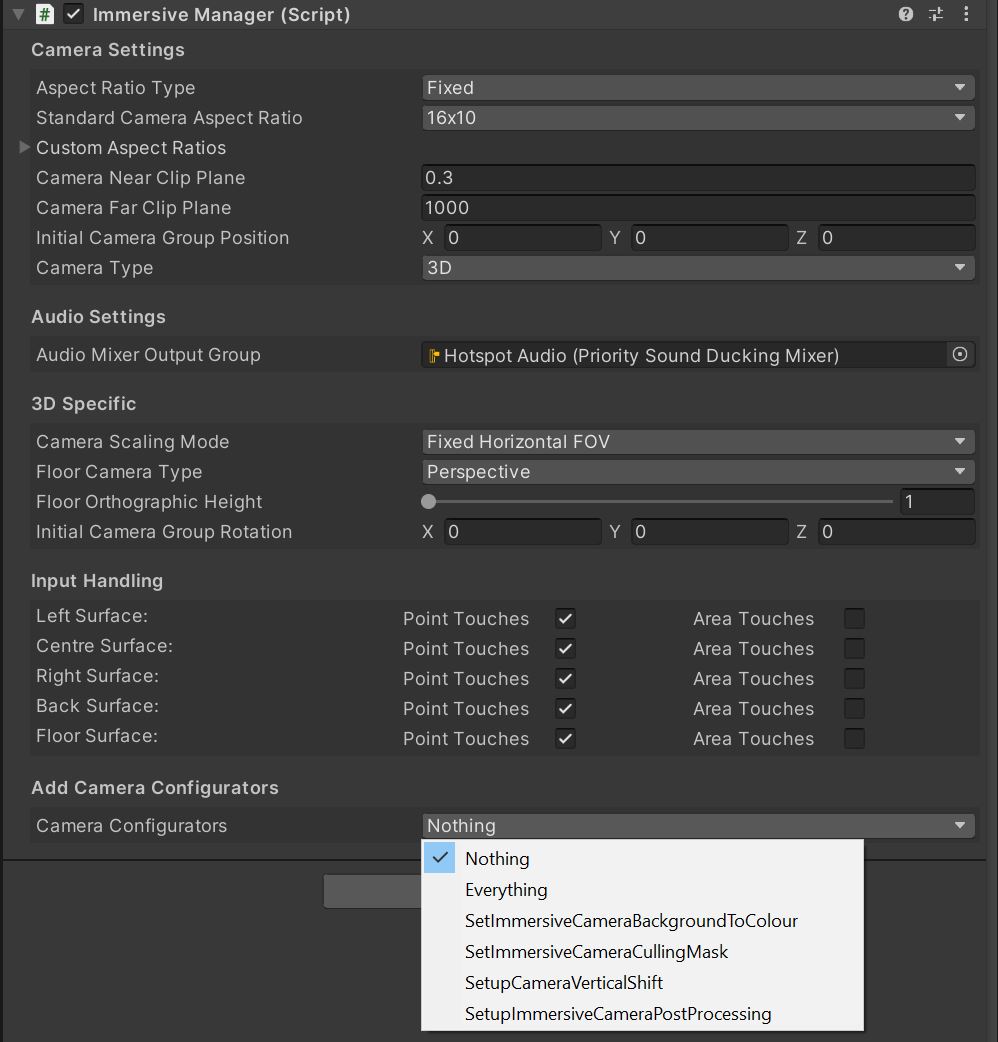
- This will add a "SetupImmersiveCameraPostProcessing" to the Immersive Manager.
- Set the Volume Layer to match the Volume you previously created.
- Add any Antialiasing settings you wish.

- The settings of the Post-process Volume should now apply to all Immersive Cameras.