Floor Offsets
Intro
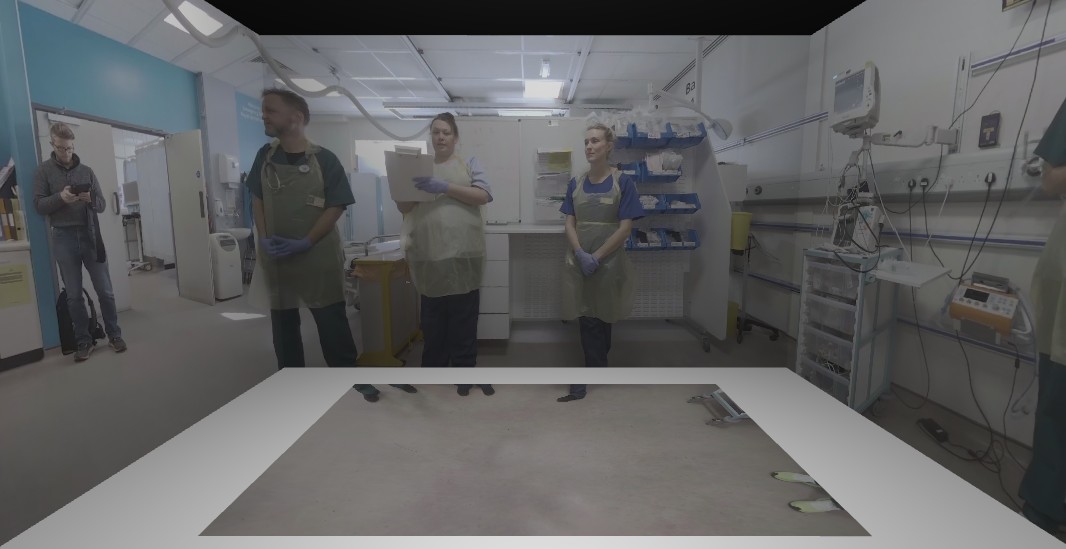
In some Immersive Rooms the Floor projections doesn't span the entire floor area. If set up correct the experience can adapt its floor rendering to accomodate the projection gaps between the walls and the floor. Note: This only applies to 3D scenes with a Perspective Floor Camera.
Runtime Settings
In order for the floor rendering to handle gaps between the Floor and Walls the experience must "know" the relative size of the floor, walls and the gap between them. As this will be different in different Immersive Spaces it is handled by Runtime Settings. If these settings are not applied then the experience will assume a spanning floor with no gaps.
Argument Runtime Settings
The following launch parameters can be provided to a Desktop Build to control the Argument Runtime Settings.
centreWallWidth:- Provide the physical width of the Centre Wall.
floorWidth:- Provide the physical width that the Floor fills.
wallCentreGap:- The physical distance between the Centre Wall and the Floor.
floorXOffset:- How much the floor is offset from the centre horizontally.
- Can be calculated from
Left Wall to Floor Gap-Right Wall to Floor Gap. - Note: Not necessary in vast majority of cases.
eg.
"Immersive Application.exe" -layout="7" -surfaces="[0,0,1920,1200][1920,0,1920,1200][3840,0,1920,1200]" -popupwindow -centreWallWidth=3.2 -floorWidth=2.2 -wallCentreGap=0.23
Note: These should all be physical measurements taken after the installation of an Immersive Space.
Simulator Settings
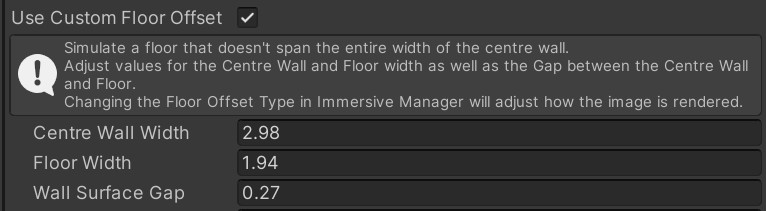
The Simulator Settings provide a way to test different Floor setups inside the Unity Editor. Enabling "Use Custom Floor Offset" allows you to adjust the "Centre Wall Width", "Floor Width" and "Wall Surface Gap" to ensure you experience functions correctly in different Immersive Space setups.
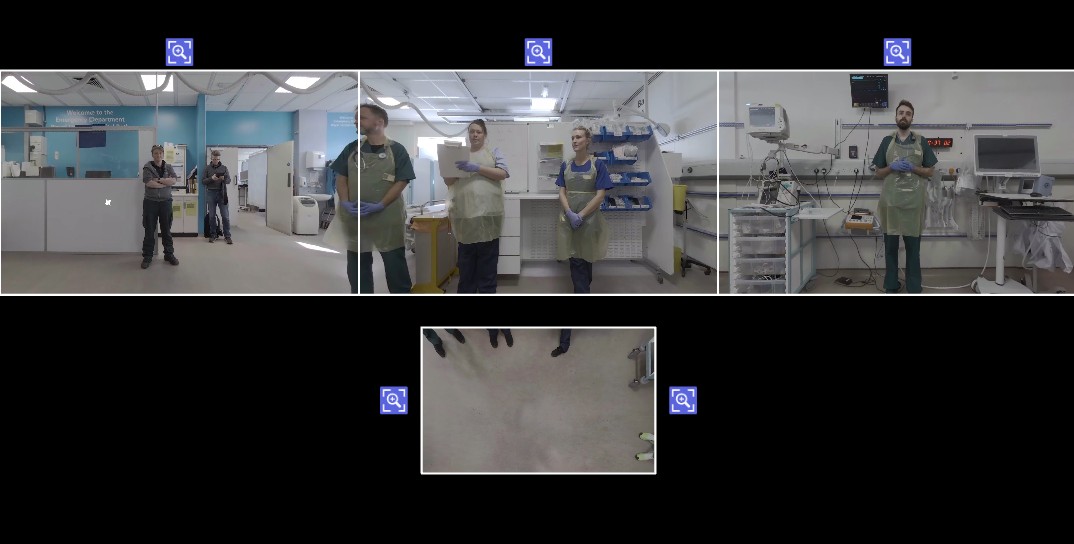
These changes will also be reflected in the Virtual Room and Flat View simulator within the Unity Editor.
Immersive Manager Settings
The Immersive Manager Settings contain a setting Floor Offset Mode which determines how this scene renders the floor when it has a Floor Offset. As this is set in the Immersive Manager, each scene can treat the Floor Offset differently. It is also possible to change these settings at Runtime via Code.
The following options are available:
- "FullFloor":
- Default Behaviour.
- Renders the floor as if it spans between all walls.
- Advantages:
- Continuous image means there is no information "hidden" in the gap between the walls an the floor.
- Floor in all Spaces will render exactly the same.
- Disadvantages:
- Element which cross from walls to floor will be offset from their wall positioning unless it is a spanning floor.
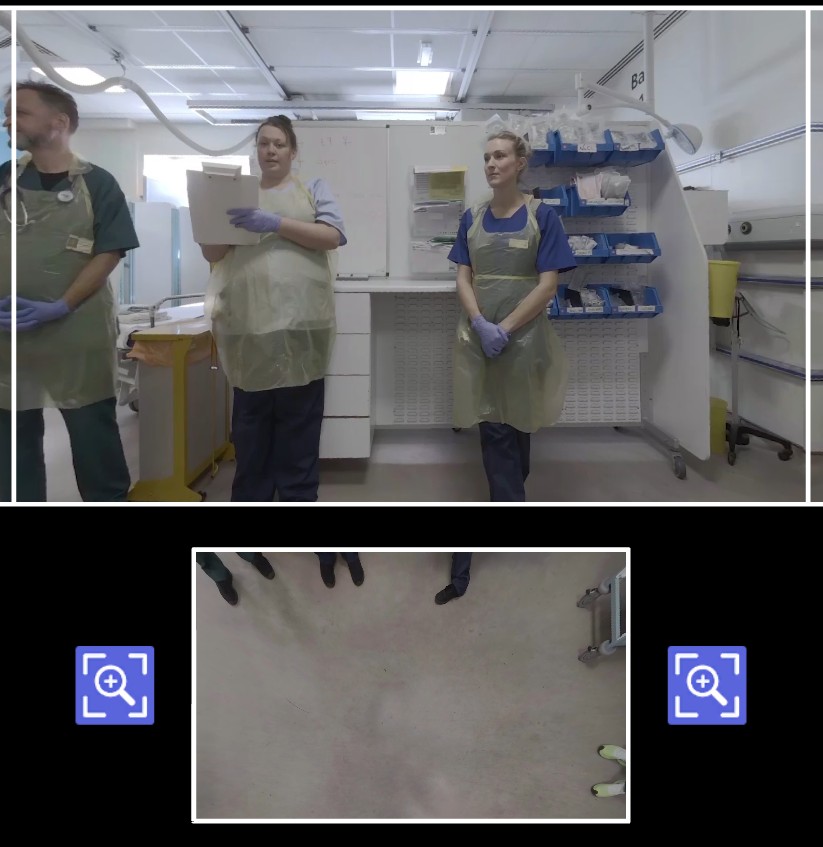
- Element which cross from walls to floor will be offset from their wall positioning unless it is a spanning floor.
- "CutoutWithCentreGap"
- Floor will be rendered to aligned the image with the walls as if there was no gap.
- Advantages:
- Elements which cross from walls to floor will be aligned.
- Disadvantages:
- Elements can be hidden in the gap between wall and floor.
- Elements can be hidden in the gap between wall and floor.
- "CutoutCentreAligned":
- Combination of the two other modes.
- Camera FOV adjusts to accomodate gap around sides.
- Camera is aligned so there is no gap between centre wall.
- Advantages:
- Elements which cross from centre wall to floor are aligned.
- Continuous image between centre wall and floor. Eg. No hidden gap.
- Disadvantages
- Elements which cross from side walls to floor are not aligned.
- Elements can be hidden in gap between side walls and floor.
- Combination of the two other modes.