Immersive Manager Settings
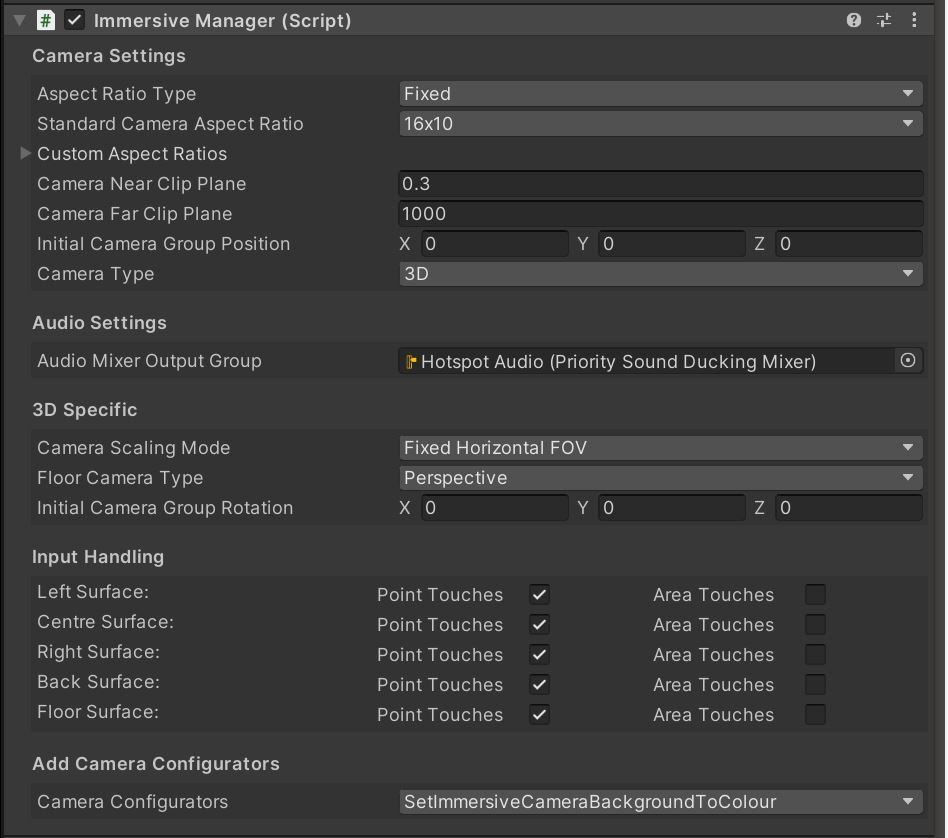
The Immersive Manager Settings apply to the current scene. Immersive Manager Settings can be edited by selecting the Immersive Manager GameObject.
Camera Settings
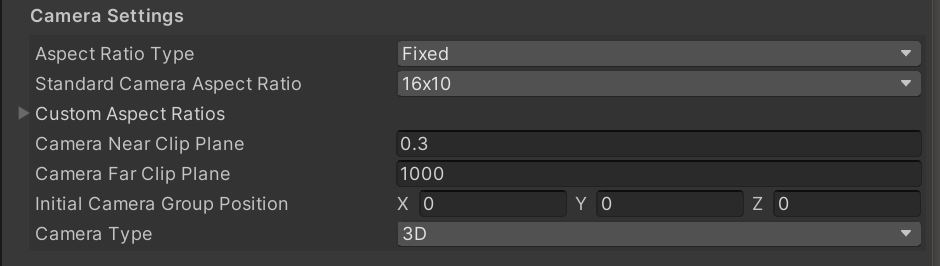
Camera Settings contains the following
Aspect Ratio Type- Whether the Camera Aspect Ratio should be
Fixed,DynamicorFixedWithDynamicFloor. - In most cases leave this as
Fixed. - See Aspect Ratios for further information.
- Whether the Camera Aspect Ratio should be
Standard Camera Aspect Ratio- The Rendered Aspect Ratio of a Standard Surface. Wide Surfaces will Render at twice the width of the Standard Aspect Ratio.
16x10,16x9,4x3- In most cases
16x10is recommended as it will scaled best to rooms of all size. - See Aspect Ratios for further information.
Custom Aspect Ratios- These allow you to overwrite the Standard Camera Aspect Ratio for specific surfaces.
- This can be used when you are building for one specific Immersive Space and you know the exact dimensions of the space.
- WARNING: This will prevent experiences from scaling well to other Immersive Spaces.
- See Aspect Ratios for further information.
Camera Near Clip Plane- Sets the Near Clip Plane of all Rendering Cameras.
- Unity Camera Documentation
Camera Far Clip Plane- Sets the Far Clip Plane of all Rendering Cameras.
- Unity Camera Documentation
Initial Camera Group Position- Initial centre position of the Rendering Cameras.
Camera Type3Dor2DCamera Setup.2Duses an orthographic projection, which means that objects at different distances from the camera appear the same size on the screen.3Duses a perspective projection, which simulates the way that objects appear to the human eye.
Audio Settings
Audio Mixer Output Group- Define an Audio Mixed Group which will be used to output Audio from Immersive Camera Managers Play Audio Methods.
- See Audio Mixer Controller for further information.

2D Specific
Settings Specific to 2D Camera Type:
Content Area Guide Type- The Content Area Guide (CAG) Type will determine how cameras are positioned in different layouts.
- There are two CAG types,
Interior(CAG-I) andExterior(CAG-E). - In most circumstances leave it as
Exterior. - See Content Area Guide (CAG) for further information.
Orthographic Height- Determines the Height of the camera's view in world units.
- Cameras will automatically scale and position when this is altered.

3D Specific
Settings Specific to 3D Camera Type:
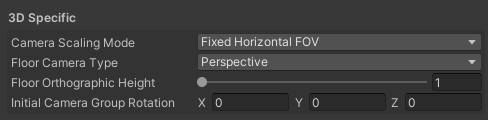
Camera Scaling ModeFixed Horizontal FOVorFixed Vertical FOV.- Determines how camera should be laid out and their Field Of Views.
Fixed Horizontal FOVtreats all surfaces with the same priority.Fixed Vertical FOVprioritised the Centre Surface.- In Standard Layout both options have same results.
- In most circumstances it is recommended to use
Fixed Horizontal FOV - See 3D Camera Scaling for further information.
Floor Camera Type- Whether the Floor should be rendered with Perspective Projection, aligning with the centre and side walls, or Orthographic.
- AKA 3D or 2D.
Floor Offset Type- See Floor Offset.
Floor Orthographic Height- The vertical size of the floor Camera in Unity units if it is Orthographic.
Initial Camera Group Rotation- The Initial Rotation or the Rendering Camera Group.
- The Centre Camera will face forward and all others will be offset from that.
Input Handling
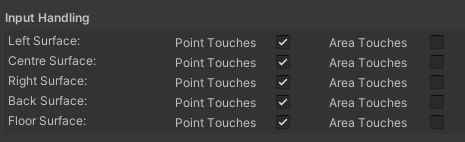
Allows us to enable or disable Area or Point Touch for each surface individually.
Point Touch- Single location touches which get treated like a tap or a click.
- This is the default input type.
Area Touch- This uses the entire area that the user touches.
- Phyics Colliders are generated around this shape which allows sensory styles interactions.
- eg. Snowflakes landing on the users arm.
- This can be used with RigidBodys and Particle Systems.
Add Camera Configurators
Camera Configurators allow you to further modify the settings the Rendering Cameras. Set Camera Configurators for more information.
For ease of use a dropdown is provided that will show you all available Camera Configurators in your project and allow you to add or remove them with a click.
